

Functional
The Discord chat exporter supports batch downloading of images, videos, and files in a Discord chat history.

Discordmate is a Discord chat exporter extension, which can help you save discord chat logs and batch export images, videos and such attachments in Discord Channels or Direct Messages.
The Discord chat exporter provides datetimepickers and attachment thumbnails allowing you to quickly find what you need to export.

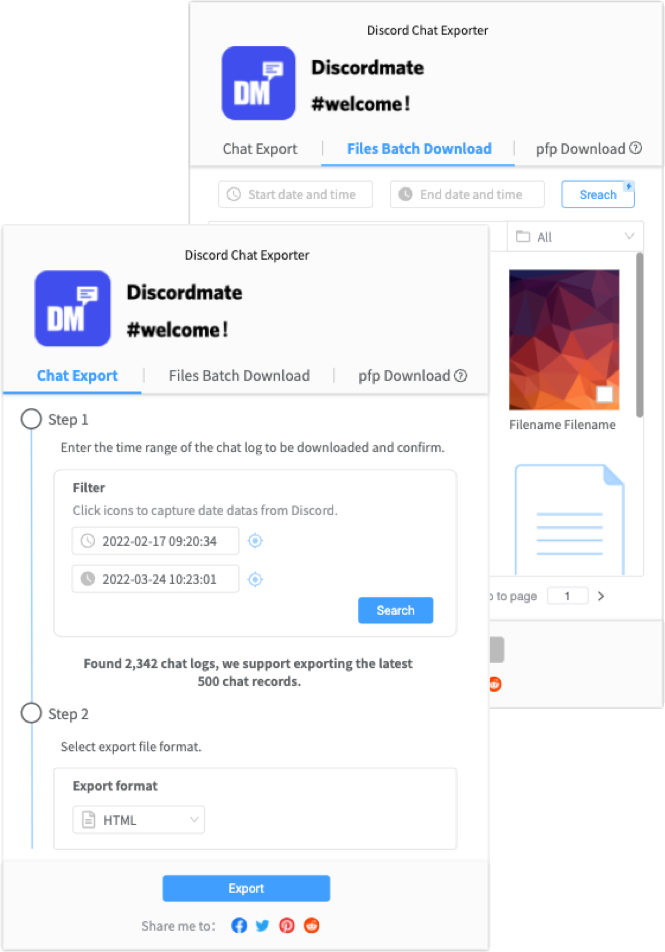
The Discord chat exporter supports batch downloading of images, videos, and files in a Discord chat history.
Provides catchers and filters to help you quickly find what you want to download in a Discord chat history.
Discordmate is free to use. It will not record or collect your account and personal privacy information
Step 01
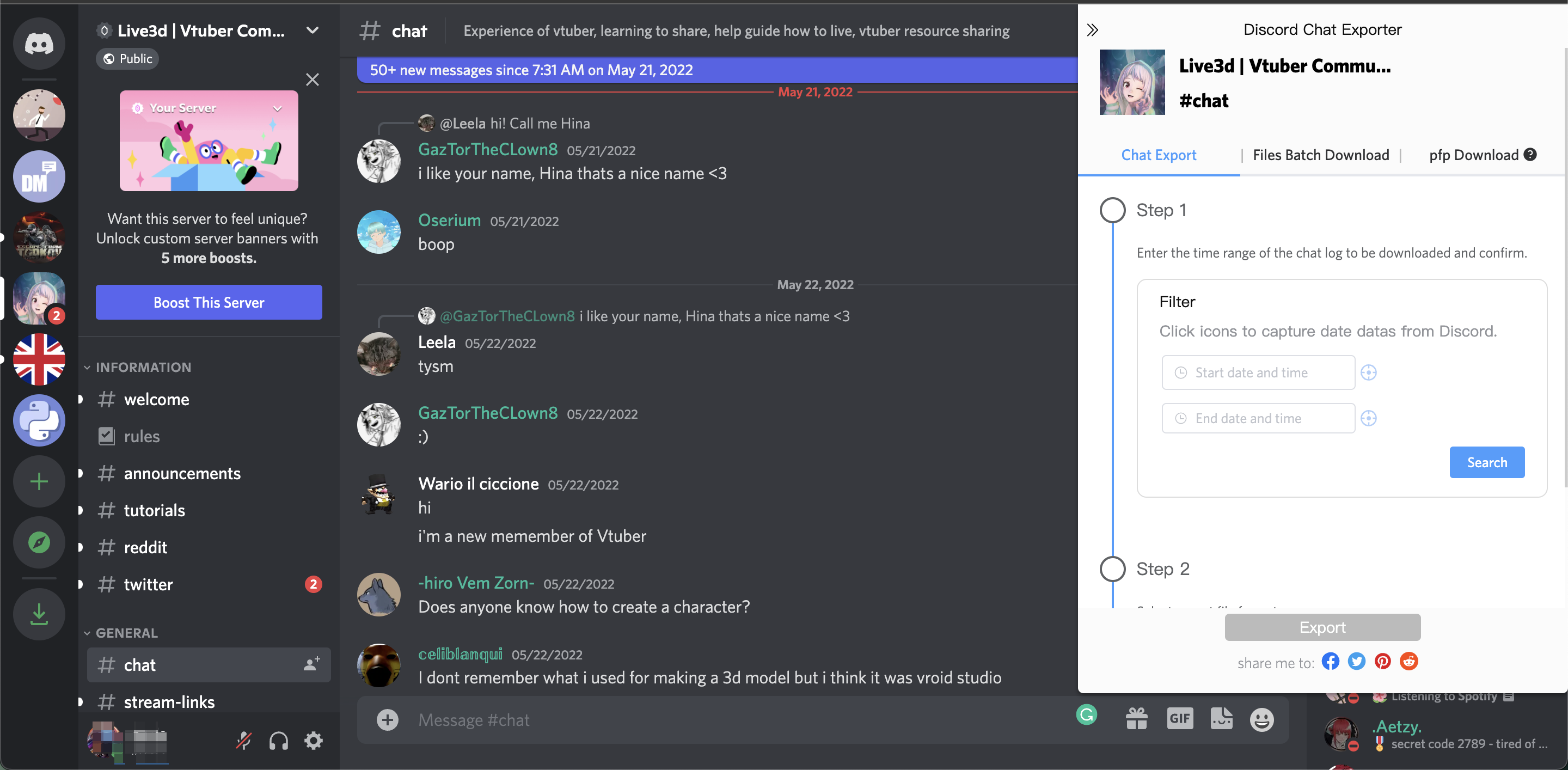
Go to the DISCORD CHANNEL or the DIRECT MESSAGES with the chat logs you want to export.
You can check the info at the top of the Discordmate's popup to make sure it's working in the right place.
Step 02
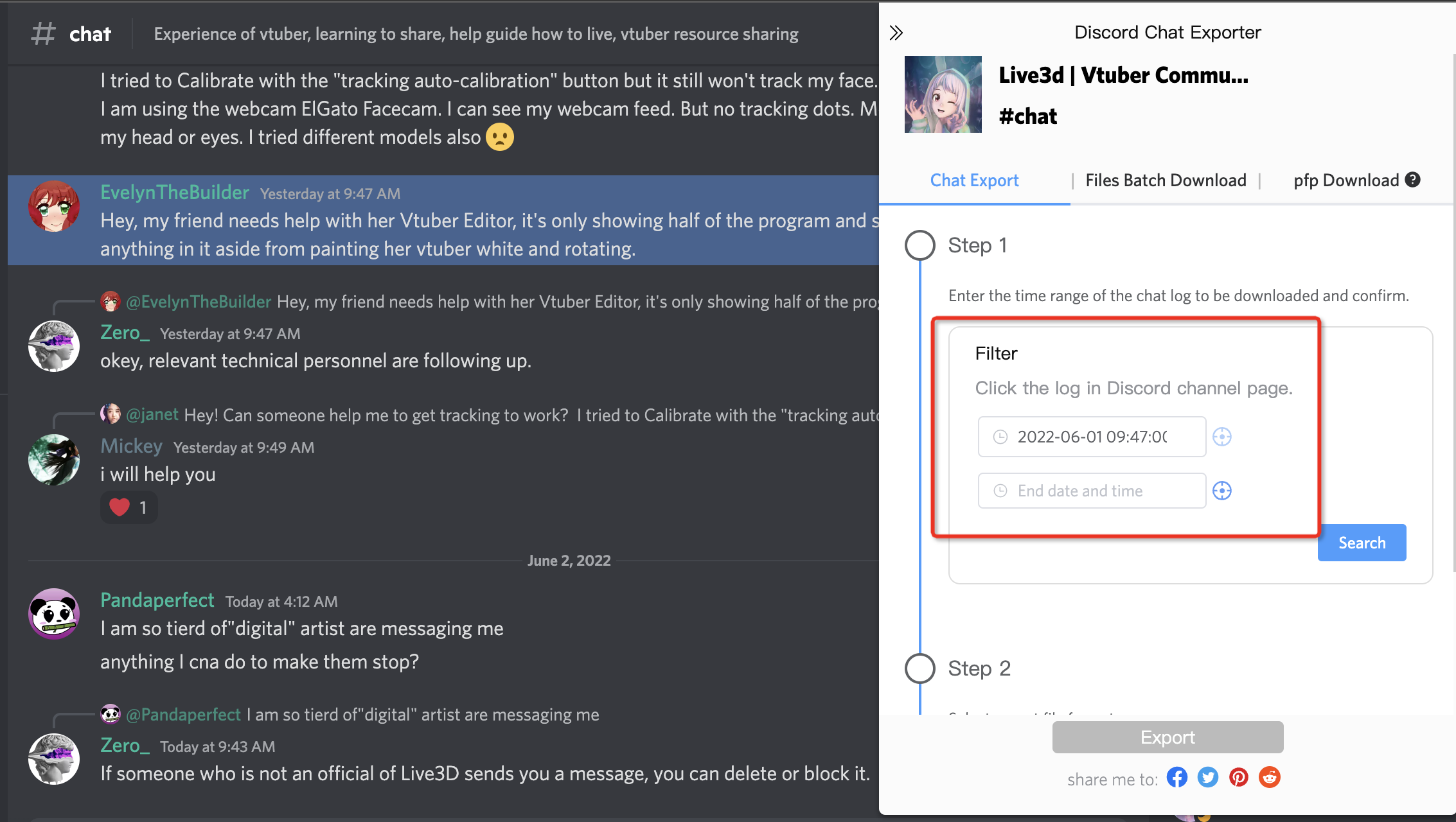
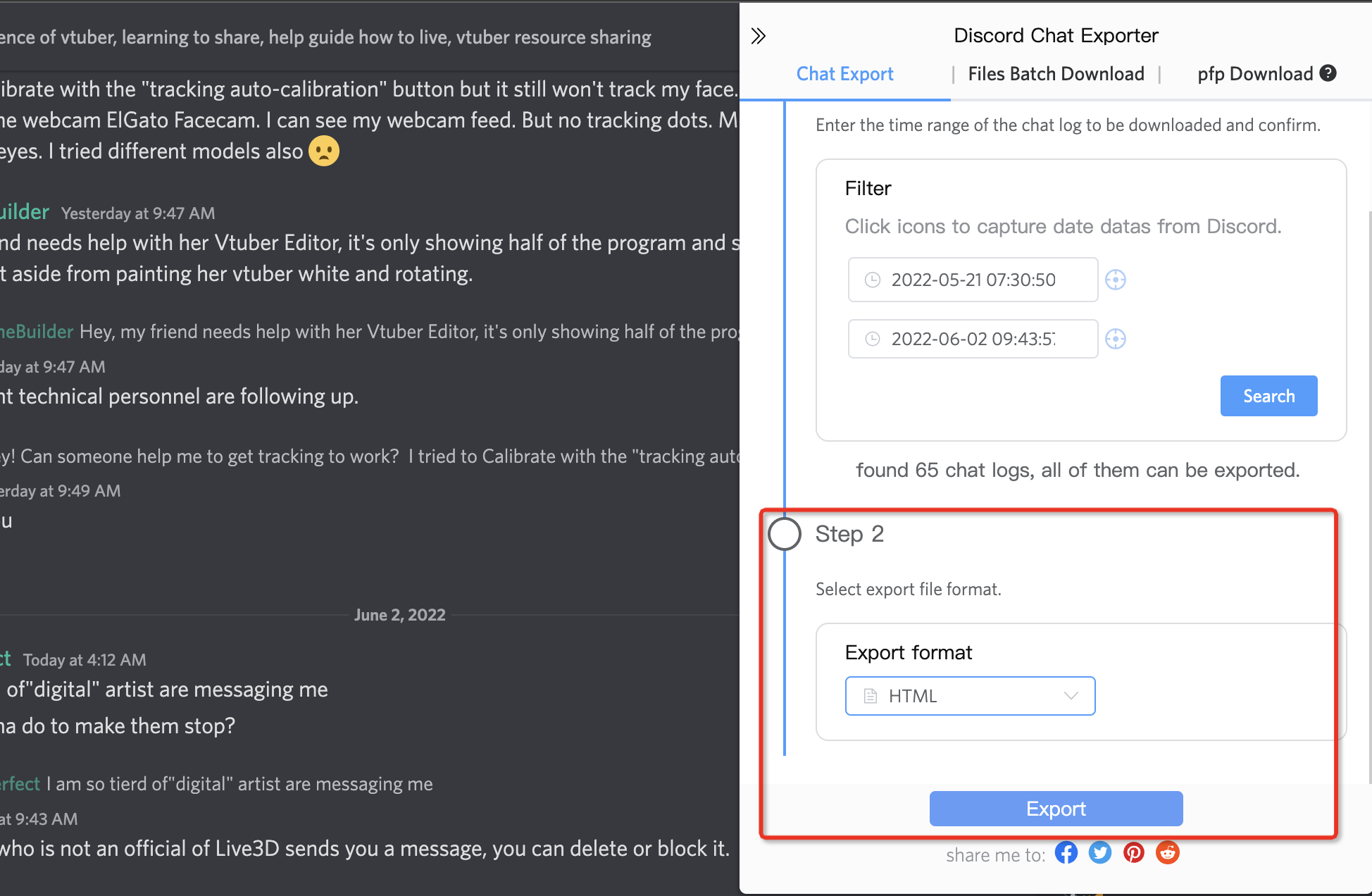
Fill in the filter of the CHAT EXPORT tab with the time range of chat logs to export and click the SEARCH button.
You can use DateTimePicker to select the start and end times or the capture tools to select the start and end of chat logs by clicking on the Discord channel page.
Step 03
After clicking the SEARCH button and completing the export file format selection, you can export your Discord chat log by clicking the EXPORT button.
The Discord chat exporter extension will show you the number of chat logs and how much you can export, after clicking the SEARCH button. If you confirm that the chat log is what you need, you can start exporting.
Step 01
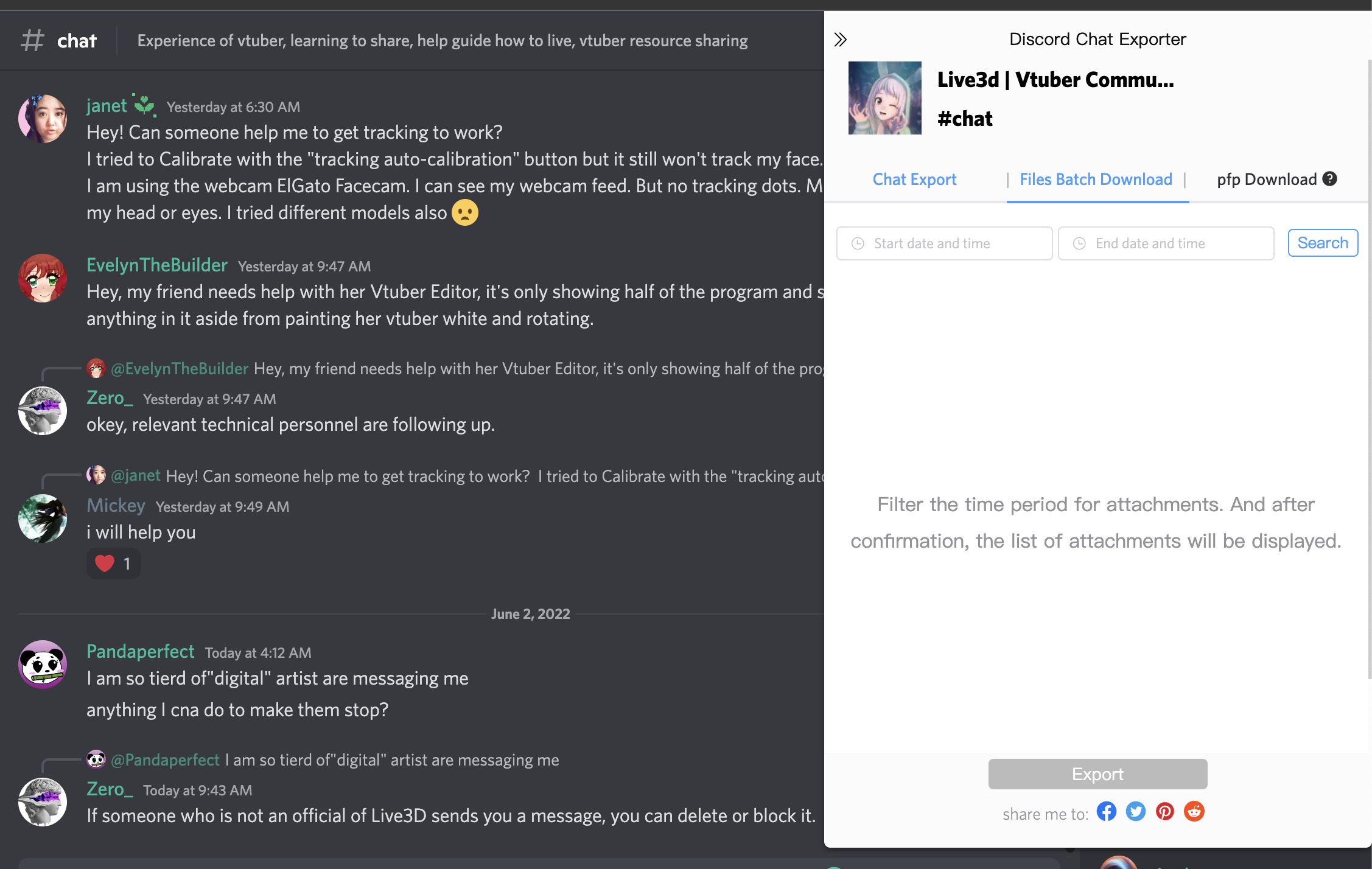
Go to the DISCORD CHANNEL or the DIRECT MESSAGES with the attachments you want to export.
You can check the info at the top of the Discordmate's popup to make sure it's working in the right place.
Step 02
Fill in the filter of the FILES BATCH DOWNLOAD tab with the date and time range of attachments to export, then click the SEARCH button.
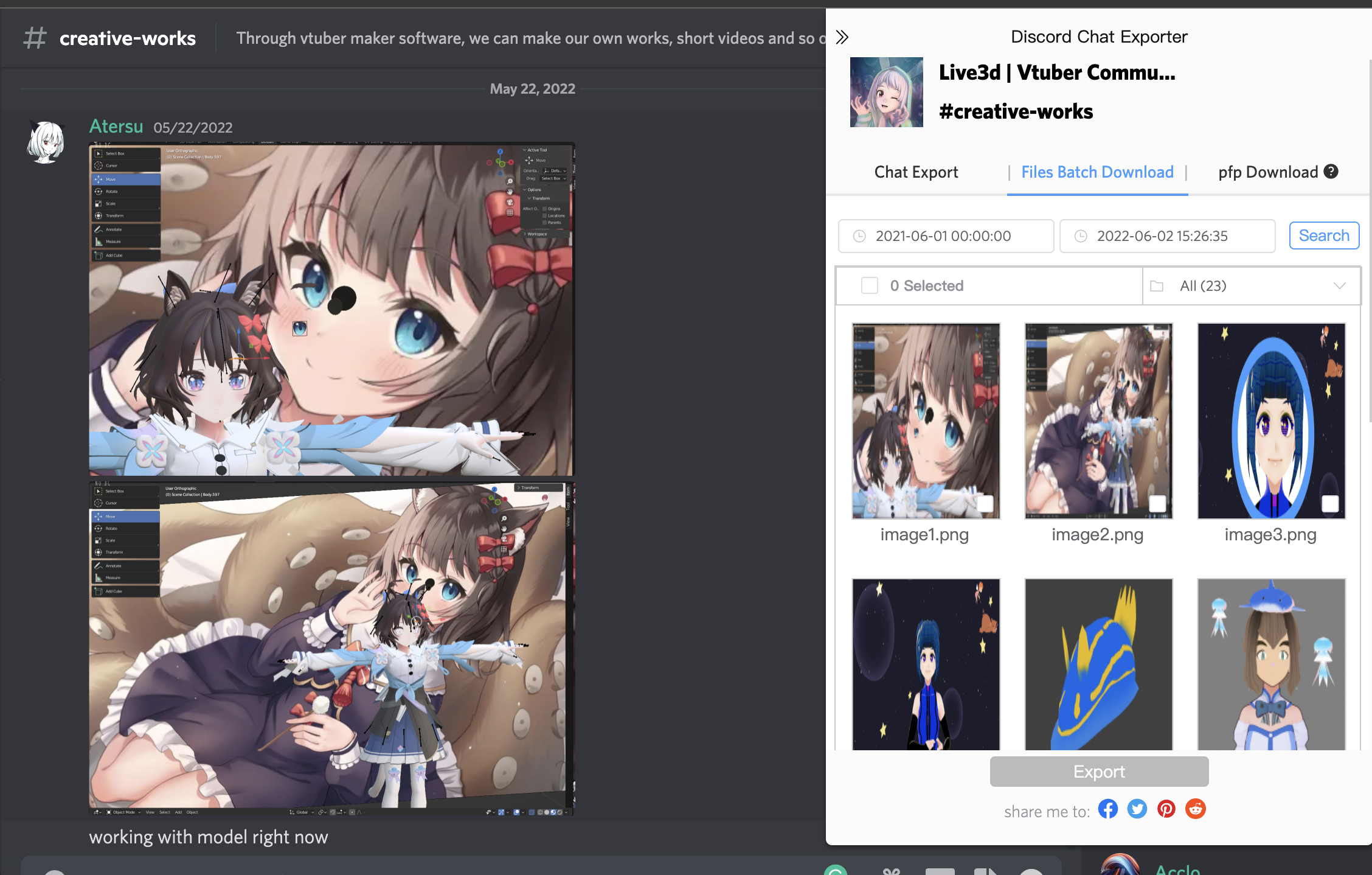
After you click the SEARCH button, the attachments within the selected time will appear in the extension popup.
Step 03
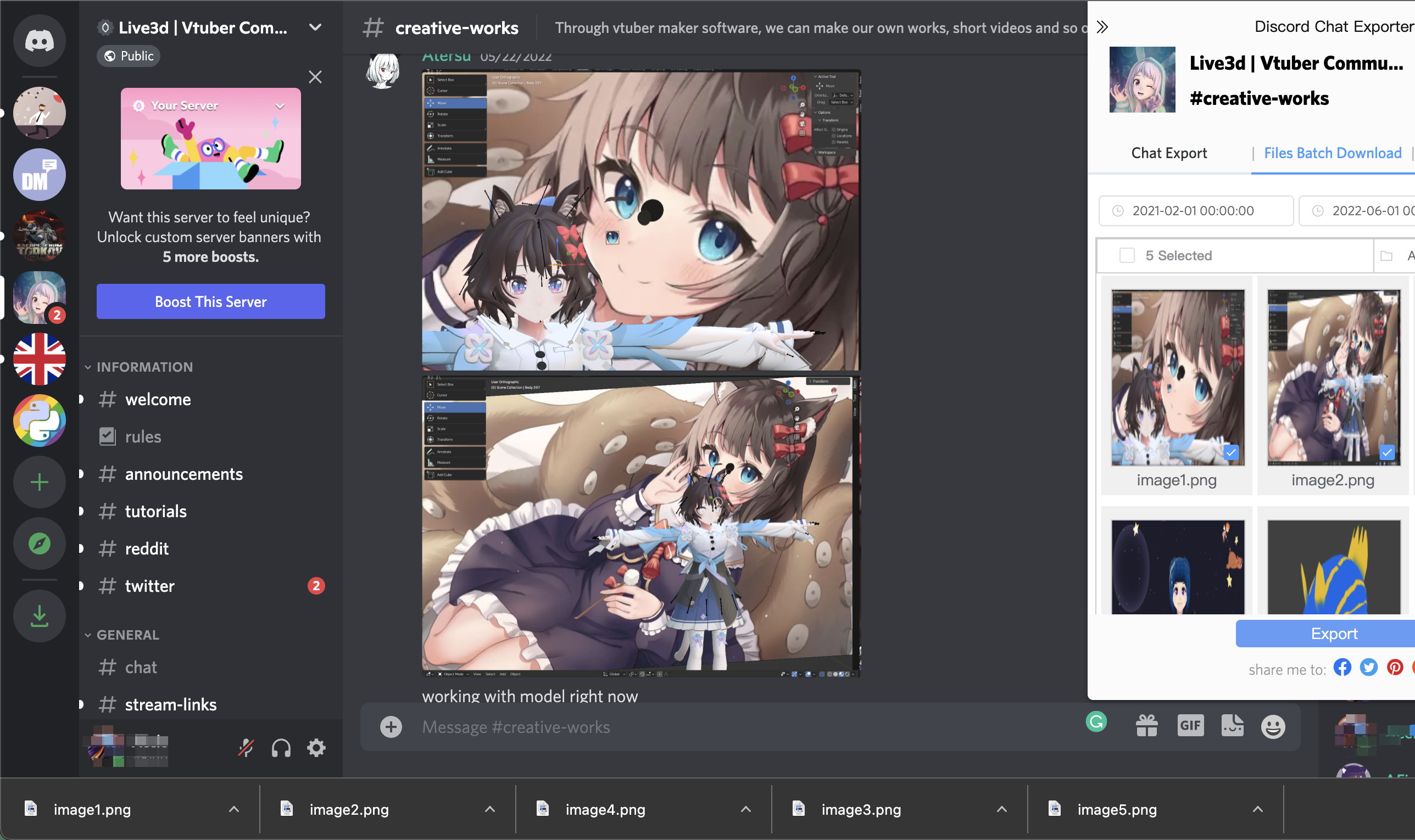
Choose the files you need and export them.
It is a good way to filter files by file type filter. The Discord chat exporter supports exporting up to 12 attachments at a time
Got a question? We've got answers.